Digital Declutter Checklist: Simple Steps to Get Started
Introduction
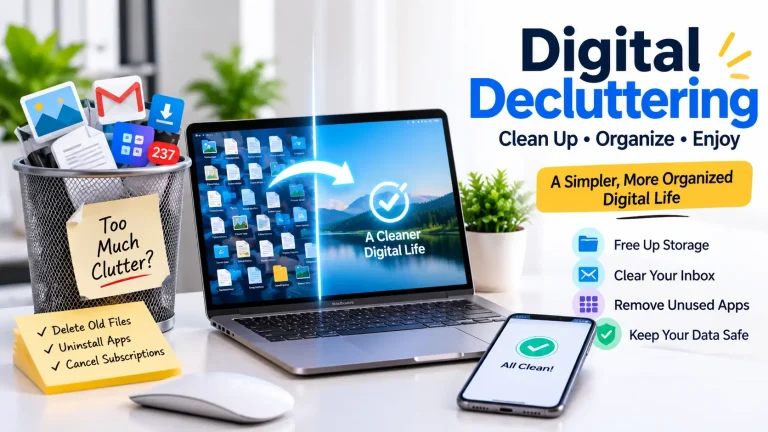
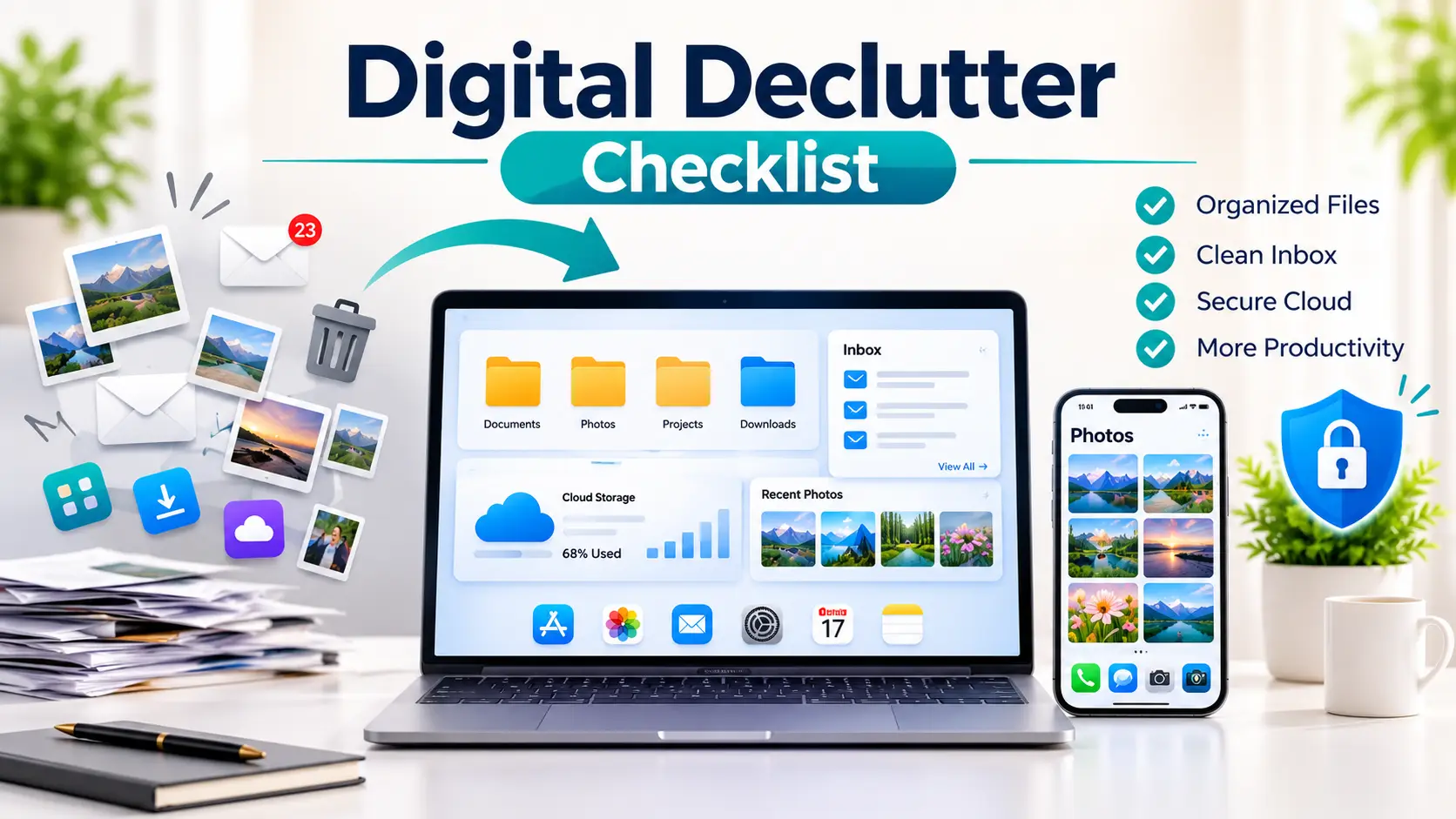
Digital clutter often builds up without you noticing. You might have old screenshots on your phone, emails you never opened, or files on your computer that you do not remember saving. When you need something important, finding it among these items can take extra time. It can be messy to deal with. A digital declutter checklist helps you work through the mess one step at a time. You can start with your phone, emails, or computer and tackle the rest whenever you have time.
Digital Declutter Checklist
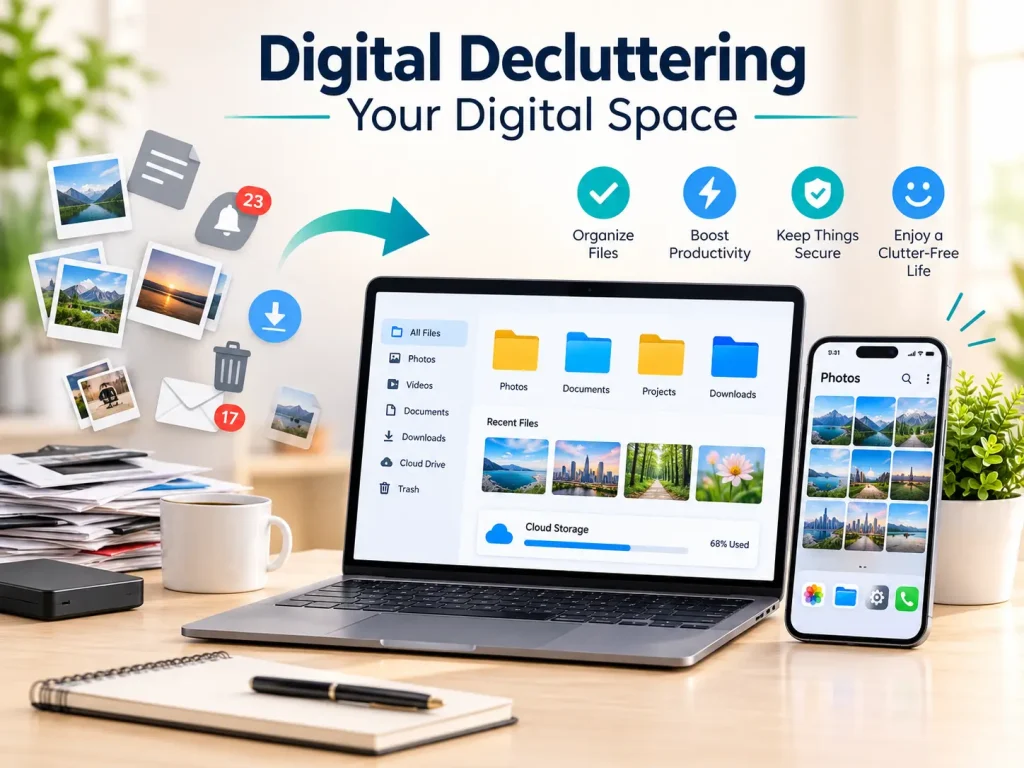
A digital declutter checklist helps you review the files, apps, accounts, and settings you use every day. It gives you a clear way to organize your digital space without trying to clean everything at once. Start with the areas that need the most attention, then work through the remaining tasks at your own pace. Here are some steps shared with you:
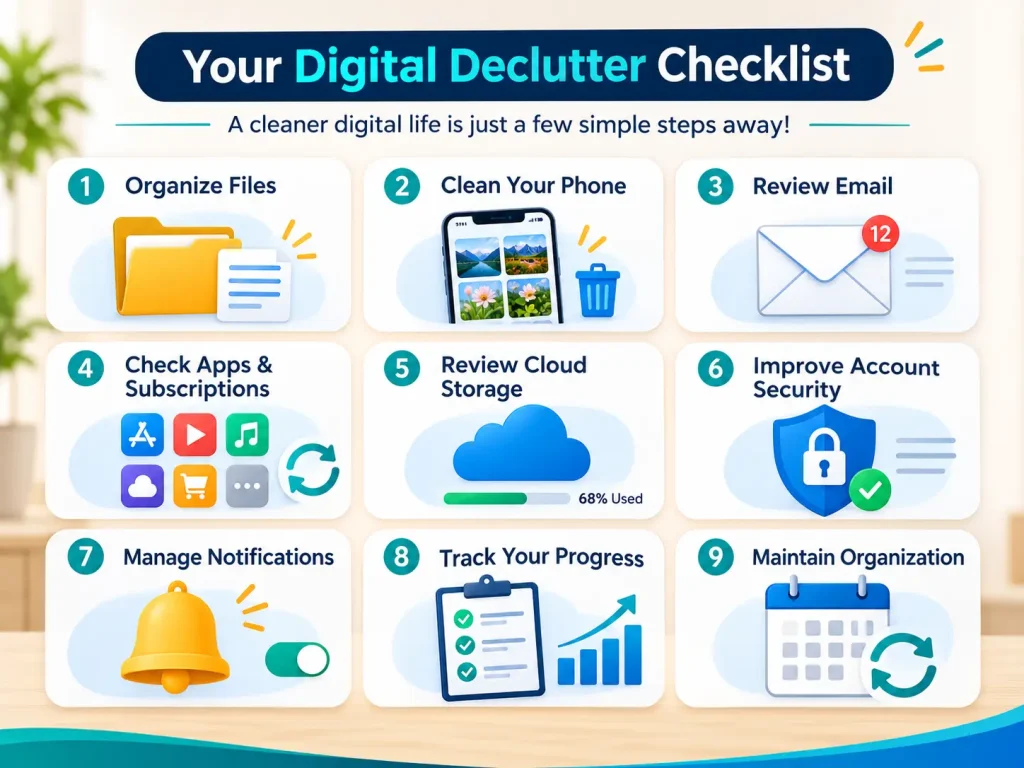
1. Start With the Files You Use Most
You must start with the folders that you open regularly, such as Downloads, Documents, or your photo folder. There is no need to check every file on your device right away.
- Delete files you no longer need.
- Rename files so you can recognize them later.
- Keep work documents separate from personal files.
- Move misplaced files to the folders where they belong.
Not sure whether a file is important? Leave it for now and check it later. It is better to take a little extra time than to delete something you need.
2. Review Your Phone
It is easy to forget about old screenshots, downloaded pictures, and recordings you saved on your phone. Therefore, you must open your gallery and Downloads folder to see what you no longer need. Also check your home screen, as we always forget about it. You can remove extra shortcuts and widgets you rarely use to keep it less cluttered. You can review your photos and recordings before deleting them to avoid losing anything important. If a file is your only copy, you can save it somewhere safe before removing it.
3. Give Your Inbox a Quick Check
You can start with emails that are no longer useful for you instead of going through every old message. A few small changes in the Digital Declutter Checklist can make your inbox easier to handle.
- Unsubscribe from newsletters you usually skip.
- Remove expired deals and old notifications.
- Move emails you may need later to the archive.
- Download important attachments before deleting their emails.
You can also sort regular emails into folders or labels. For example, keep bills, work messages, and travel details separate so they are easier to find when needed.
4. Check Apps and Subscriptions
First of all, go through the apps installed on your phone and computer. You may find some you have not opened in months or services that are still taking money from your account. Before keeping or removing an app, consider a few things:
- When did I last use it?
- Am I still getting value from this subscription?
- Does it contain information I want to keep?
- Is it linked to another account or service?
You can also cancel subscriptions you no longer need through the service provider. Also, check for saved data before uninstalling an app or closing an account. Uninstalling an app does not always cancel its subscription. So, do it wisely.
5. Review Your Cloud Storage
You must open your cloud storage and then look through the folders you use regularly. Here, you may find duplicate documents, old shared folders, or backups you no longer want. Then, check file names and remove items you no longer need after reviewing their contents.
You must take extra care with old backups before deleting them. Some files may only exist in your cloud account, so make sure important documents are still available. Therefore, open a few files to confirm that they work and that your backup copies can actually be accessed.
6. Check a Few Important Security Settings
You must clean up your digital life that also means of checking who can access your accounts. You can open your account settings and make sure your recovery email and phone number are still correct. If two-factor authentication is available, turn it on. It is also worth checking which apps are connected to your accounts and removing access you no longer need.
You can check for pending updates on your phone and computer, too. The updates can include important security fixes. Also, make sure your important files have a backup. These steps would not protect against every risk, but they can help you avoid some common account and data problems.
7. Make Your Notifications More Useful
Some apps send alerts that you rarely need. Over time, these notifications can distract you from messages that matter. You must open your device settings and review which apps can send alerts. You can turn off unnecessary promotional notifications, but keep alerts for important messages, account security, and other tasks you rely on. You can also review notification settings inside individual apps if your device does not offer the controls you need.
8. Keep Track of What You Have Checked
It is easy to repeat the same cleanup work or forget which areas still need attention. A short progress list in Digital Declutter Checklist can help.
| Area | What to Check |
| Files | Unneeded documents and unclear names |
| Phone | Screenshots, downloads, and unused shortcuts |
| Old offers, newsletters, and attachments | |
| Apps | Unused programs and recurring charges |
| Cloud storage | Duplicate files and old backups |
| Accounts | Recovery details and connected apps |
You must choose one or two areas at a time. You can review the rest later instead of turning the task into a full-day project.
9. Keep Your Digital Space Organized
You can clean up your digital space once in a while can prevent files, emails, and unused apps from piling up again. A few regular checks can help you keep things under control. You can use this simple maintenance checklist:
- Weekly: Go through recent downloads, screenshots, and emails you don’t need.
- Monthly: Check your subscriptions, storage space, and apps you rarely use.
- Every few months: Review your backups, account recovery details, and security settings.
- When needed: Sort your files after finishing a project or setting up a new device.
You can follow this schedule based on how you use your devices. If your work involves handling lots of files, you may need to clean up more often. If you mainly use your phone for messaging and browsing, occasional checks may be enough.
How the Digital Life Analyzer Can Help
After completing the Digital Declutter Checklist, you may want to review your wider digital setup. Our tool, Digital Life Analyzer, allows you to assess areas such as devices, storage, backups, subscriptions, organization, and security using information you enter. Its score is an estimate based on that information, not a certification or a guarantee that your digital setup is secure. You can use the results to decide which areas may need another look.
FAQs
What is a digital declutter checklist?
It is a list of tasks for reviewing digital files, apps, emails, subscriptions, storage, and account settings.
Do I need to finish the checklist in one day?
No. But you can start with the area that causes you the most trouble and return to the remaining tasks when you have time.
Should I delete old backups?
Not without checking them first. An old backup may contain files that are no longer saved anywhere else.
Can digital decluttering improve device performance?
You can remove unnecessary files, which may free up storage, but it does not guarantee that a device will run faster.
How can I stop digital clutter from building up again?
Set aside a little time for occasional reviews. Deleting unwanted downloads and checking new apps regularly can help you avoid a larger cleanup later.
Conclusion
A Digital Declutter Checklist makes it easier to keep your digital space under control. If you check your files, photos, emails, apps, and accounts regularly, you can avoid unnecessary clutter and find important information more easily. You do not need to complete every task at once. You must follow the checklist at your own pace and repeat it whenever your digital space needs attention.